What is VPS? What are the advantages of its use? We have previously introduced what is a VPS and what are the advantages of using it.
This time, we will explain in detail the flow of actually using a VPS and points to keep in mind.
Flow of VPS usage
- Apply for a VPS from the XM web management screen.
In about one day, you will receive an e-mail notifying you that your VPS environment is ready. - Connect to the VPS using the connection information provided in the e-mail.
- Prepare an environment in which MT5 runs.
- All that remains is to leave it alone.
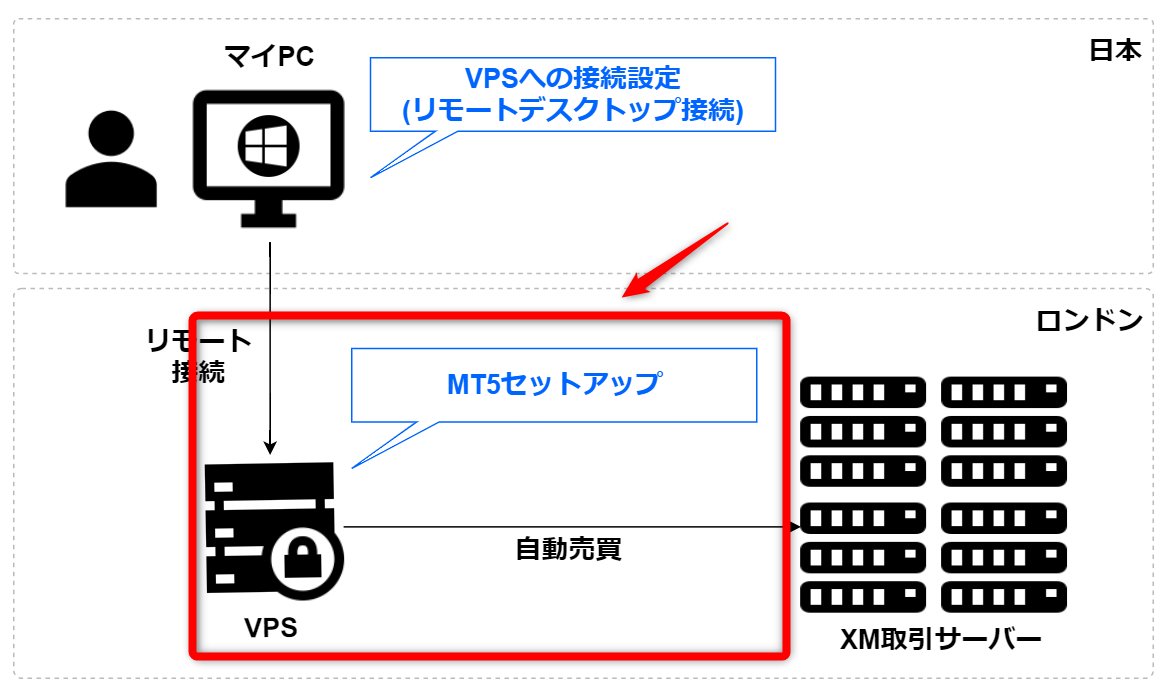
VPS Usage Image

- A VPS is specifically a Windows PC environment prepared in a cloud environment for your exclusive use.
- The VPS will be located in the London data center where XM's trading servers are located.
- Connect to the VPS from your PC and set up the EA operating environment.
The physical proximity of the trading server and VPS location reduces the time required for order execution due to reduced network access delays. This allows for more accurate automated trading to be executed. The MT5 environment is prepared on this prepared VPS, and the EA is placed there. After making the necessary settings such as parameters, you can start trading 24 hours a day.
Preparation 1.
VPS Application
Apply from the XM member page.
1. Select "Account" from the top menu. 2. Select "VPS". 3. After confirming the contents, click "Request VPS.
- After a few minutes, you will receive an email from Beeks Finalcial Cloud.
This completes the application process.
Log in to the VPS using the connection information provided in the body of the email.
Preparation 2.
Set up a connection from My PC to VPS
Configure settings for remote desktop connection.
Once you have done this once, you can save the settings and simply double-click on the appropriate file the second time or later.
- Press the Windows key (the button with the Windows logo at the bottom of the keyboard, about third from the left).
- Enter " remote " in katakana in the "Enter here to search" field.
- Click on "Remote Desktop Connection" in the search results.
- Enter the connection information provided in the email you received from Beeks Financial Cloud, the VPS provider, into the configuration screen.
Click the "Save As" button so that you can reuse the information next time. - An icon (.rdp) for remote connection will be created as follows.
Please set the name of the icon in a way that is easy for you to understand. - Double-click the icon for remote connection.
The following dialog box will appear for the first time.
Check the "Do not confirm connection to this computer in the future" checkbox and click the "Connect" button. - The Windows Logon screen will appear. Enter the Username and Password provided in the email you received from Beeks Financial Cloud. The first time you connect, you will be prompted to change your initial password. Please make a note of it so that you do not forget it!
- The connection is successful when the Windows screen appears in the window.
The screener already has XM installed, but you will need to install it yourself.
Preparation 3.
Install MT5
Please see the following
for a summary of the procedure.
What should be done on the supplemental VPS
- MT5 Installation
- EA Placement
- EA Parameter Setting
- EA start/stop
Configure the necessary settings to run the EA. Please refer to the following for detailed instructions.
Please be assured that a page summarizing the implications of the various parameter settings is available for those who have applied for the EA.
What may or may not be performed on the supplemental VPS
- Clock Time Adjustment →Windows displays the current time in the lower right corner of the screen, but the time in the VPS is not set to Japan time.
This may seem a little strange, but MT5 does not use this clock time, so it does not affect the operation of MT5 whether it is changed or not. - Language Settings →Various menus of Windows itself are initially displayed in English. It is possible to change to Japanese, but once you start VPS operation, you do not need to change to Japanese because you will not connect frequently afterwards. If you are concerned about it, there is no problem to switch to Japanese. If you want to change it, this article will be helpful.
Supplemental information that should not be implemented on the VPS
- You should avoid opening the VPS each time you want to check the results of trading. While operating the VPS screen, you may unintentionally change the conditions of automated trading, which is a source of malfunction. If you wish to check your trading history, it is better to: A. Install MT5 on your own PC instead of on the VPS and view your trading history B. Install the MT5 smartphone application (iOS/Android) on your smartphone and view your trading history from within your smartphone screen. This will allow you to check your trading status and prevent any glitches.
Related


 3. After confirming the contents, click "Request VPS.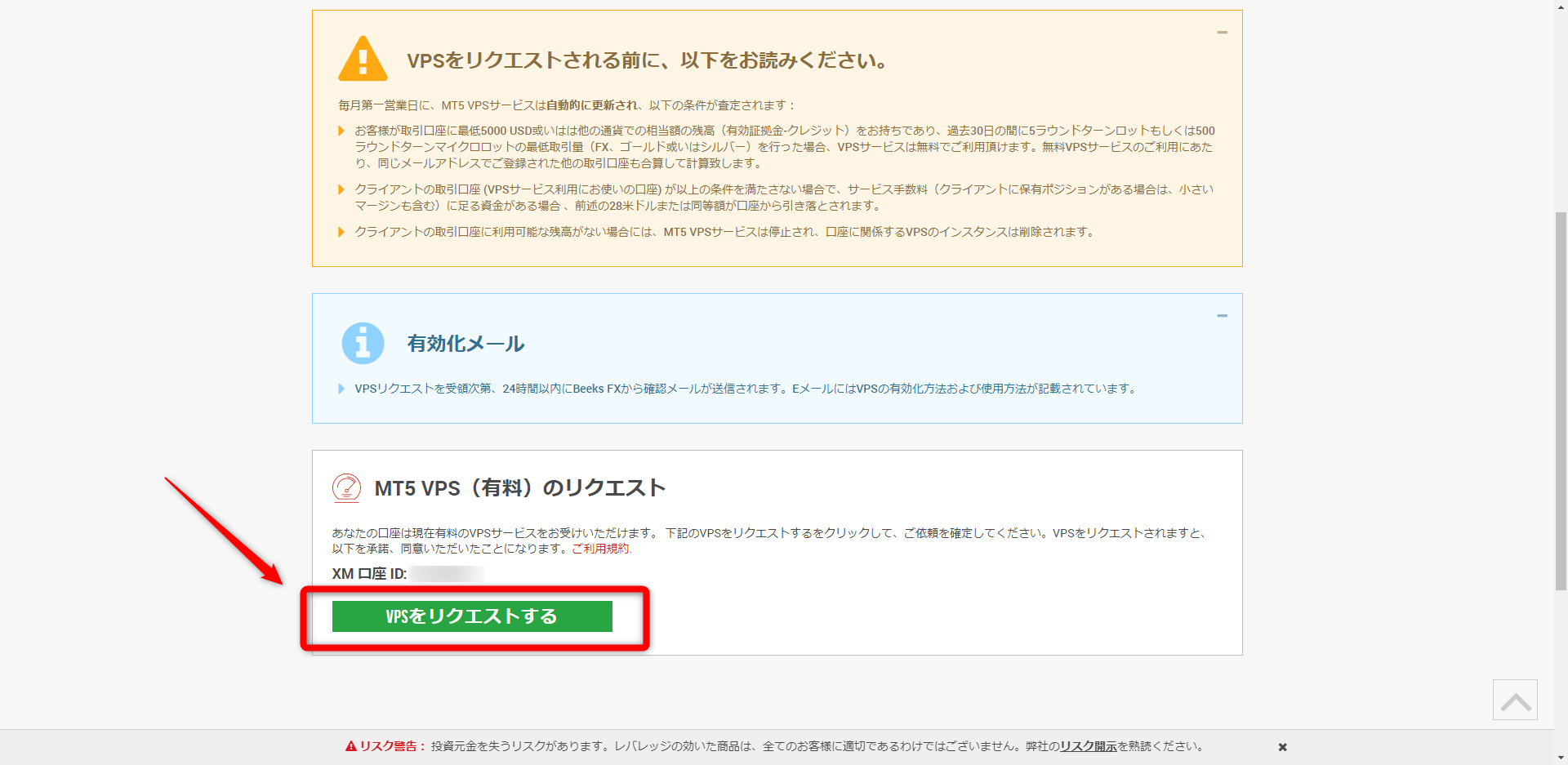
 Configure settings for remote desktop connection.


 The screener already has XM installed, but you will need to install it yourself.